
Searching for an a i photo editor usually means one thing: you want to upload a picture, say what should change, and get a clean result in seconds. For most people, Adobe Firefly is the best all-round free pick. Picsart suits social creators, Canva suits anyone building posts and graphics, and ChatGPT suits people who like to describe edits in plain English. If you want to skip accounts entirely, PhotoEditorAI and EzMaker are the quickest places to start.
The problem is that most artificial intelligence photo editor pages promise “free” and then hit you with a sign-up wall, a watermark, or a credit meter after two edits. You also should not need to learn layers and masks just to remove a stranger from a vacation shot or clean up a product photo. This guide sorts eight tools by what they actually do and what “free” really means for each.
At ilovetrend.com we write practical guides that help you decide before you click. We compared each tool on four things: background and object removal, photo enhancement, prompt-based editing, and how much you get before a paywall appears. A comparison table, a prompt template, and a short checklist for free limits close the article.
1. Adobe Firefly
What you can do
Adobe Firefly is the strongest free pick when you want natural-looking edits that are safe to use commercially. Its Prompt to Edit feature lets you upload a photo, type what you want changed, and get a new version in seconds. It also bundles the cleanup tools most people search for.
- Generative Remove erases unwanted people, objects, and power lines.
- Remove background works in one click.
- Generative Expand extends the image to new aspect ratios.
- Generative Upscale raises resolution and clarity.
- Generative Fill and Generative Recolor handle targeted changes.
Uploads accept JPEG, PNG, and WEBP files up to 100MB, and images must be at least 512 x 512 pixels. You can choose Adobe’s own model or partner models from Google and OpenAI. Start your prompt with at least five words, such as “remove the power lines from the sky,” because very short prompts give vague results.
Firefly is the best free AI photo editor when you need clean results you can actually publish.
Free access and who it suits
A free Adobe account gets free daily generations, and a paid plan raises the volume. You do need to log in with an Adobe ID, so this is not the pick if you refuse to create any account. Setting one up takes a minute.
Firefly suits beginners, bloggers, and small business owners who care about licensing. Adobe says its own models are trained on licensed content such as Adobe Stock and public domain material, and not on your uploads. For partner models, you decide whether the model fits your project.
2. Picsart
What you can do
Picsart is the best all-in-one free AI image editor for social media work. It packs more than 25 AI tools into one interface, so you rarely have to jump between apps. You can upload a photo and describe the change you want, or use the dedicated tools one by one.
- Background remover and background generator
- Cleanup Pictures for removing people, objects, and clutter
- AI Enhance, unblur, and old photo restoration
- AI Replace for swapping part of an image
- AI Image Extender for widening a shot
Color correction, filters, and style transfer sit in the same editor. A batch editor lets you enhance many images at once, which saves real time if you shoot product photos in bulk. It works in the browser and in a phone app.
If you want one tab that does removal, enhancement, and creative effects, Picsart is hard to beat.
Free access and who it suits
Picsart has a free tier for basic editing, while heavier AI features run on paid plans. Its Pro plan has been listed at $15 a month, or $10.50 a month billed yearly, with a monthly credit allowance for AI generations. Prices change, so check the pricing page before you commit.
Picsart suits creators who post often and want fast, trendy results. It is less ideal if you want strict control over every pixel, because its strength is speed and variety. Test the export step on one photo first, so you know what your free account allows.
3. Canva
What you can do
Canva is the best choice when the edited photo is headed straight into a design. It offers AI tools to add, erase, and enhance parts of an image, so you can fix a photo and drop it into a template without leaving the page. You do not need design skills for any of it.
- Magic Eraser removes objects you brush over.
- Magic Edit replaces a selected area based on a text description.
- Background Remover cuts out the subject.
- Magic Expand extends an image past its borders.
The real advantage is what happens afterward. You can resize for Instagram, YouTube, or a flyer, add text, and export in a few clicks. That makes it a solid free AI photo editor online for people who make graphics, not just retouched pictures.
Canva wins when editing the photo is only step one and the finished design is the goal.
Free access and who it suits
Canva requires an account, and free users get limited uses of its AI tools. Background removal has been a Pro feature, so confirm what your plan includes before you plan a workflow around it. Features move between plans over time.
It suits teachers, small business owners, and social media managers who already live in templates. If you only want to remove an object from a single photo and download it, a lighter tool will be faster. Canva shines when you are producing posts and polished layouts.
4. ChatGPT
What you can do
Yes, ChatGPT can edit a photo. You upload an image, describe the change in everyday language, and it returns a new version. That works for removing objects, changing backgrounds, adjusting lighting, restyling a portrait, or turning a snapshot into an illustration.
The conversation is the feature. Instead of redoing your prompt, you follow up with “make it warmer,” “keep the person but change the sky,” or “try a cleaner white background.” Each reply builds on the last, which feels natural if you hate menus and sliders.
There is one caveat worth knowing. ChatGPT regenerates the image rather than editing pixels in place, so fine details can drift, especially faces, small text, and logos. For a family portrait or an exact product shot, check the result against your original before you use it.
ChatGPT edits by regenerating, so it is great for creative changes and risky for exact-match retouching.
Free access and who it suits
You need an account, and free users get usage limits on image generation and editing that can change. When you hit the cap, you wait or upgrade. That makes it a fine occasional tool, but not a bulk editor.
ChatGPT suits people who think in sentences, not tools. It also fits anyone who wants to experiment with ideas, such as trying five background moods for one portrait. Pair it with a dedicated remover when you need a precise, untouched result.
5. PhotoEditorAI
What you can do
PhotoEditorAI is a prompt-first editor built for quick jobs. You choose a model, upload an image, type an instruction, and download the result. Instructions like “remove the background,” “enhance the lighting,” or “add a vintage filter” are the intended use.
It offers several engines to pick from, including its own PhotoEditorAI versions plus Nano Banana and SeeDream 4.0. Switching models gives you a second chance when the first result misses. It accepts JPEG, PNG, and WEBP files up to 24MB.
- Background replacement and removal
- Object erasing and face retouching
- Style transfer from a reference image
- Text and logo blending into a photo
- Separate image upscaler for larger displays
For a free AI image editor with no hurdles, PhotoEditorAI gets you from upload to download fastest.
Free access and who it suits
The site states that you can use it without registering and download in high resolution. It also says edited images are deleted automatically after a few days. Treat those as the provider’s claims and read its terms before uploading anything private.
PhotoEditorAI suits people who want a free AI photo editor online with no sign-up hurdle, such as someone fixing a listing photo during a lunch break. Expect that any free service can add limits later. Test the output resolution on your first export and you will know if it meets your needs.
6. EzMaker
What you can do
EzMaker positions itself as a no sign-up AI photo editor. Its pitch is simple: remove objects, enhance photos, and get a finished picture in seconds. That covers the two edits most casual users want, cleaning distractions and sharpening a weak shot.
Object removal is the tool to try first. Mark the thing you want gone, such as a trash can, a tourist, or a stray cable, and let the AI fill the gap. Enhancement is the second pass, useful for dull, soft, or underexposed phone photos.
- Quick object removal for travel and property photos
- One-step enhancement for dull or soft images
- No account to create before you start
When you want a fast fix and zero setup, EzMaker removes the friction before it removes the object.
Free access and who it suits
EzMaker advertises free use without signing up, which makes it a natural first stop for a one-off edit. Free tools of this type often cap resolution or daily use, so check the export quality on your first image. If the file looks soft, you have your answer in under a minute.
It suits readers who want a quick, no-commitment AI image editor online for a single photo. It is a weaker fit for brand work or large batches, where you need consistent settings and repeatable results. Use it for fast fixes, not full workflows.
7. bitStudio
What you can do
bitStudio is the pick for product and e-commerce photos. You can edit with text prompts or reference images, remove objects, change backgrounds, and add products into a scene. The reference image idea matters: showing the AI what you want often works better than describing it.
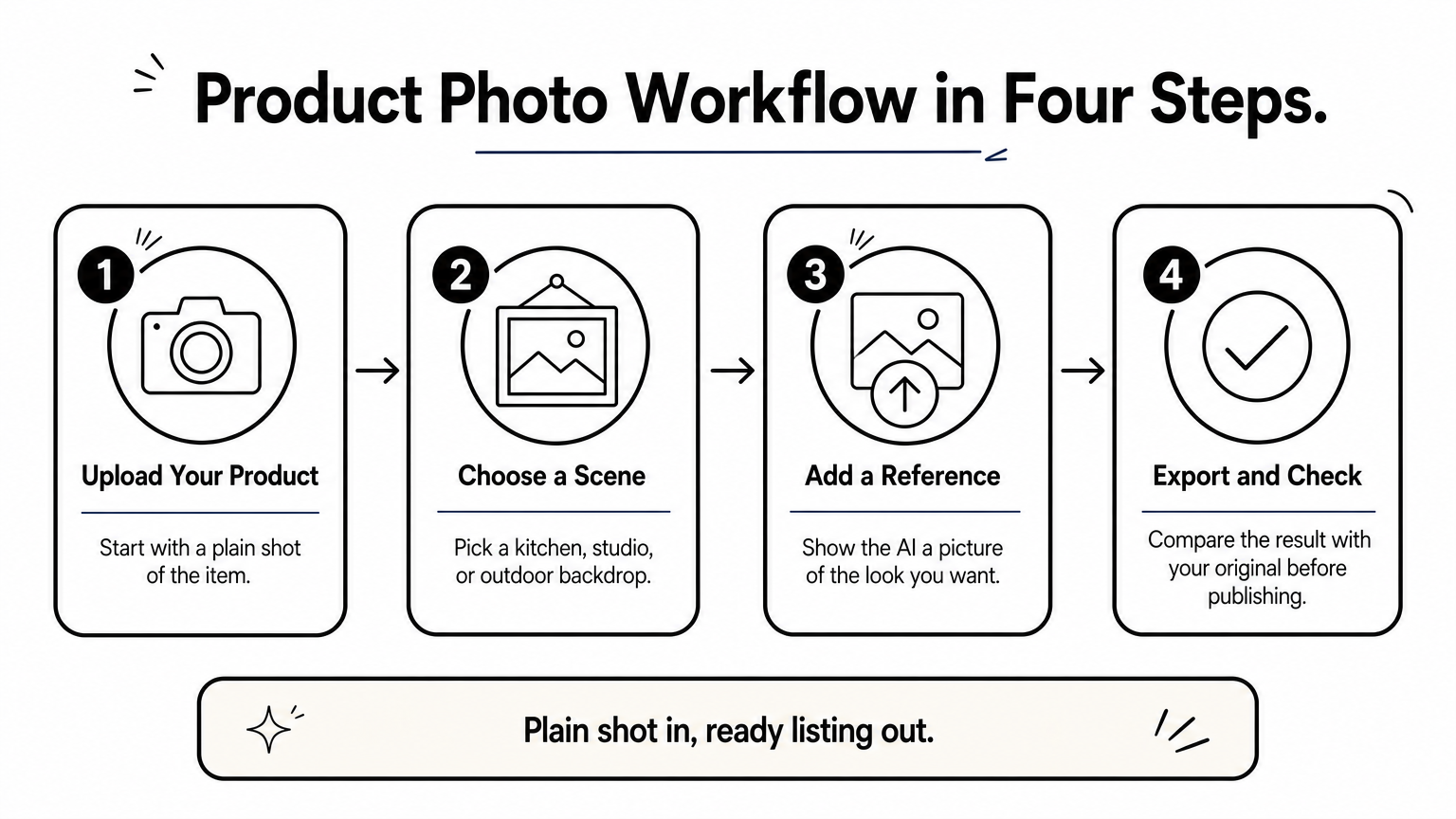
A typical workflow is to upload a plain product shot, then place the item in a kitchen, a studio, or an outdoor scene. You can also swap out a cluttered background and keep the product untouched. That saves a styled photoshoot for early-stage listings and ads.
- Remove objects and distractions
- Change or replace backgrounds
- Add products into a new scene
- Guide the result with a reference image
If you sell things online, bitStudio’s reference-image workflow is the most useful trick on this list.
Free access and who it suits
You can try bitStudio free, but it applies daily limits. That is fine for testing a handful of images a day, and tight if you run a full catalog. Plan your edits so your most important images go first.
It suits sellers, small brands, and marketers who need on-brand visuals fast. It is less obviously suited to portrait retouching. Match the tool to the job, and check commercial-use terms before you publish edited images in ads.
8. DeepAI
What you can do
DeepAI offers a free online AI photo editor for simple, direct edits. Its image editor lets you remove backgrounds, swap objects, enhance quality, and apply styles. The interface is minimal, which helps if you just want to add a picture and try an idea.
Style application is the playful side. You can push a plain photo toward a painted, sketched, or stylized look, and compare it to your original. Object swapping works well for simple scenes, like changing a mug on a desk, and less well for crowded, busy images.
- Background removal
- Object swapping
- Quality enhancement
- Style application
DeepAI is the low-pressure place to experiment before you decide which tool deserves your time.
Free access and who it suits
DeepAI describes the editor as free online. As with every free tool here, usage limits and feature access can change, so read the page before you rely on it for deadlines. If an edit matters, save the original before you upload.
It suits curious beginners and anyone running quick tests. Use it to learn what prompt-based editing feels like, then move to a more specialized tool for repeat work. It is also a good second opinion when another editor mangles a particular photo.
How to choose a free AI photo editor
Side-by-side comparison
The right pick depends on your task and how much sign-up friction you tolerate. Use this table to narrow the field before you test.
| Tool | Best for | Free access note |
|---|---|---|
| Adobe Firefly | Natural, commercial-safe edits | Free daily generations, Adobe account needed |
| Picsart | Social content, all-in-one tools | Free tier, heavier AI on paid plans |
| Canva | Photos going into designs | Account needed, limited AI uses |
| ChatGPT | Conversational, creative edits | Account needed, usage limits |
| PhotoEditorAI | Fast prompt edits | States no registration needed |
| EzMaker | Quick object removal and enhancing | Advertises no sign-up |
| bitStudio | Product scenes, reference images | Free with daily limits |
| DeepAI | Casual tests and style effects | Free online |
Match the row to your job, not to the tool with the longest feature list. > The best AI photo editor is the one that does your specific edit well on the first try.
A prompt template that works anywhere
Specific prompts beat clever ones. Name the object, say where it is, and tell the AI what to leave alone. Copy this and swap the brackets.
Remove [object] from [location in the photo]. Keep everything else unchanged. Match the original lighting, colors, and texture.
For background changes, replace the first sentence with “Replace the background with [scene]. Keep the subject’s edges, hair, and shadows natural.” One edit per prompt gives cleaner results than stacking four requests together.
What free really means
No free AI photo editor is truly unlimited. Expect daily caps, credit meters, resolution limits, or watermarks, and check each on a real export before you build a routine around a tool. Sign-up rules also shift, so a tool that needs no account today may ask for one later.
Privacy and licensing deserve a minute too. Read how a service stores uploads, and avoid uploading photos of other people or sensitive documents without a reason. If you plan to use edited images in ads or product pages, confirm commercial use in the tool’s terms first.
Pick one tool and test it on a real photo
The best free AI photo editor depends on your job. Firefly gives the cleanest, safest results, Picsart and Canva fit social and design work, ChatGPT handles conversational edits, and PhotoEditorAI, EzMaker, bitStudio, and DeepAI cover quick, low-commitment fixes.
Choose one, run a photo you care about through it, and check the exported file before you commit. If you want more practical, plain-language guides for everyday decisions like this one, see how free AI image detectors check photos and art on the ilovetrend.com blog.